Google Analytics 4
Simpler Checkout runs on Simpler's domain, where the Google Analytics 4 (GA4) tag on your storefront never runs, so a checkout on its own would be a blind spot in your reports. Simpler closes it by sending the checkout steps to your GA4 property itself, inside the visit the shopper started on your storefront.
What you get
- The checkout is visible.
begin_checkout,add_shipping_infoandadd_payment_infoarrive as Google's standard e-commerce events, so your GA4 funnel reports show where shoppers drop off. - Campaign attribution survives the checkout. Every event joins the shopper's storefront session, so the sale is credited to the campaign that brought them, not to
simpler.soreferral traffic. - Purchases count when the payment is confirmed. With
purchaseturned on, Simpler sends it once the order is accepted, whether or not the shopper returns to your confirmation page. Closed tabs, lost connections and payments that settle later (MultiBanco, MBway) are all counted. - Nothing to change in your tag manager. Events go server to server into GA4. Your existing tags keep running as they do today.
How it works
Your GA4 tag sets the _ga cookies on your storefront: _ga identifies the shopper (client_id) and _ga_<ID> identifies the visit (session_id). When the shopper goes to checkout, those cookies travel with them to Simpler. Simpler sends each checkout step to GA4 with the Measurement Protocol, carrying the same client_id and session_id, so GA4 places the step inside the visit that started on your site.
How it fits with your tracking
Simpler adds the checkout to your GA4 reporting and leaves the rest of your setup as it is.
- Your storefront tags keep running. Your GA4 tag, tag manager and pixels stay on your storefront and confirmation page, exactly as today.
- GA4, server to server. Events go straight from Simpler to your GA4 property, not through your tag manager or a
dataLayer, so there is nothing to change in your Google Tag Manager container. - Standard events, the same for every store. Google's recommended e-commerce events with fixed names and parameters, so your standard GA4 reports and Explorations work without any mapping.
- Off until you turn it on. Simpler sends nothing to GA4 for a store until you enable it, and
purchasestays off until you opt in.
How to activate
Do this once per store.
-
Create a Measurement Protocol API secret in GA4. Admin → Data streams → your web stream → Measurement Protocol API secrets → Create. Copy the secret value.
-
Note the Measurement ID of the same web stream (format
G-XXXXXXXXXX). -
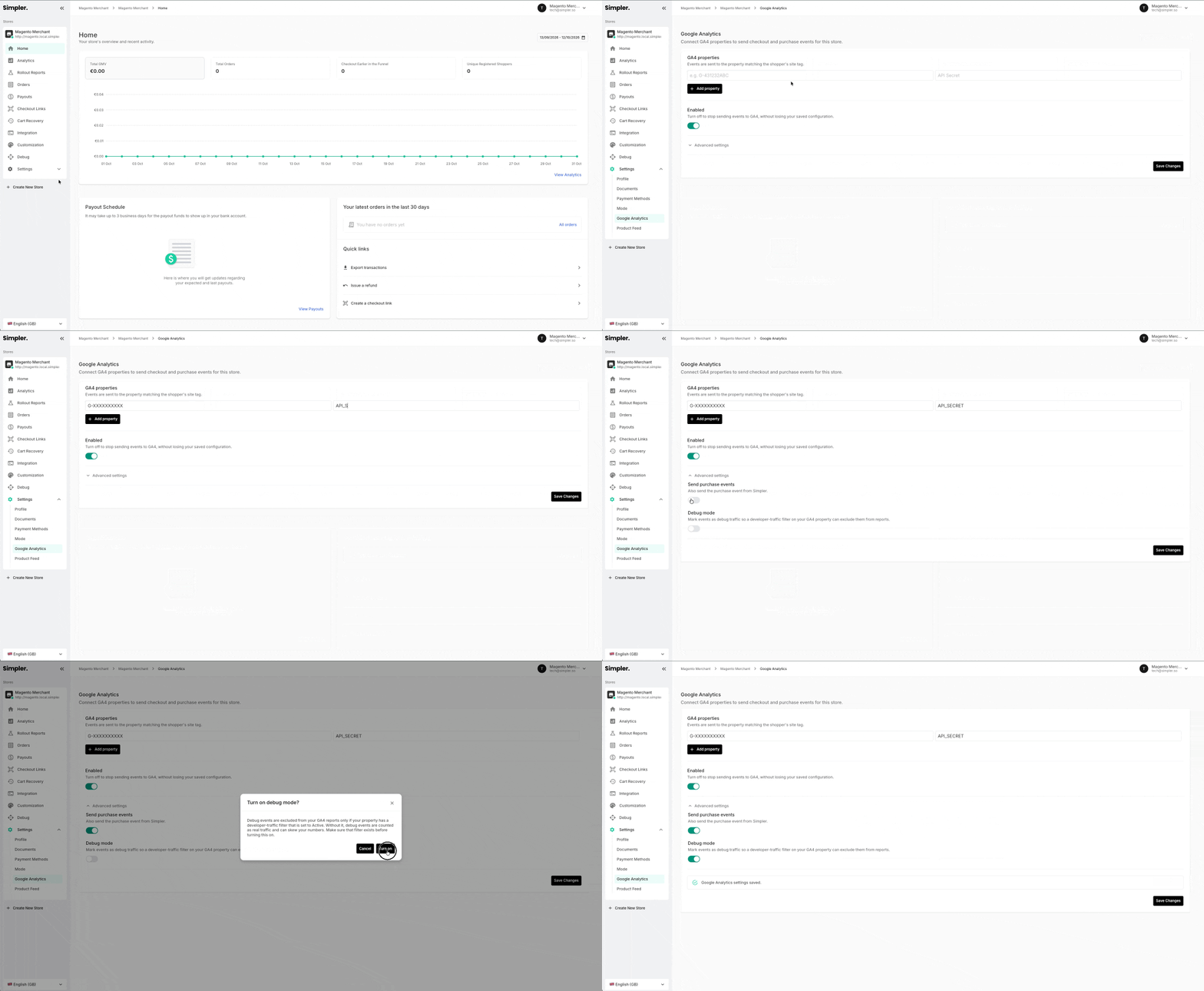
Enter both in the Simpler dashboard. Open Settings → Google Analytics in your store in the Simpler dashboard, enter the Measurement ID and the API secret, and turn sending on. The same switch stops all events at once.
-
Keep your GA4 tag on the storefront. Simpler reads the cookies that tag sets. A shopper without them (no tag, or no consent to analytics cookies) sends no events, and nothing breaks: the checkout works as normal.
Simpler's plugins pass the shopper's GA cookies out of the box. On a custom integration, also pass the cookies yourself.
Several properties
A store can send to several GA4 properties, for example a local and a global one. Add each property with its own Measurement ID and API secret. Every event goes to every property you list, each with the shopper's own session for that property. Simpler sends only to the properties in your settings, and if one fails, the others still receive the event.
Custom integrations
With Replacing Checkout, Simpler can't read your shopper's cookies, so you pass them in the cart request metadata. Read every cookie whose name is _ga or starts with _ga_ (with your prefix, if your tag uses one). The cart request is sent from your server, so if you read the cookies in the browser, pass them to your server first. Send them as the ga_cookies array:
{
  "ga_cookies": [
    { "name": "_ga", "value": "GA1.1.1937866382.1791449166" },
    { "name": "_ga_ABC123DEF4", "value": "GS2.1.s1791793008$o1$g1$t1791793129$j60$l0$h0" },
    { "name": "_ga_XYZ987WVU6", "value": "GS2.1.s1791792918$o1$g1$t1791793007$j60$l0$h0" }
  ]
}
- Send all the GA cookies, not only one: each property has its own
_ga_<ID>cookie and Simpler picks the right one per property. - Values are the raw cookie values, unchanged.
- Send at most 50 cookies: Simpler keeps the first 50 names in alphabetical order. Values that are not strings are ignored. If the browser holds the same cookie name twice, send the first.
- If the shopper has denied analytics consent, send no
ga_cookiesat all. - This is the one
metadatavalue that is an array rather than a string.
The events
All are Google's recommended e-commerce events, so your standard GA4 reports and Explorations work without changes. Each carries the common parameters and one entry per product line in items.
begin_checkout: the checkout opens. Once per page load, so a reload or a return from a payment page sends it again.
add_shipping_info: the first time the shopper clicks Pay, or leaves or hides the page, once a shipping option and a valid address or pickup point are set. At most once per page load. Not sent for carts with nothing to ship. A shopper who leaves without clicking Pay still sends it, without an add_payment_info.
shipping_tier: the id of the shipping option the shopper is paying with.- The shipping cost is not sent here: Google defines no shipping parameter on this event, and it isn't part of
value.
add_payment_info: every time the shopper clicks Pay with a valid form and the payment method is ready, for every payment method. A second attempt after a failed or cancelled payment sends it again. This event and add_shipping_info are sent before any redirect to a payment provider, so neither is lost.
payment_type: Simpler's payment method id, for exampleCARD.payment_fee: the surcharge the payment method adds (for example cash on delivery), only when there is one. It is a custom parameter. To report on it, register it as a custom metric in GA4 (Admin → Custom definitions, event scope).
purchase (opt-in): at most once, when the payment is confirmed and your store has accepted the order, so it does not depend on the shopper returning to your confirmation page. For payment methods that settle later (for example MultiBanco or MBway) it is sent when the payment arrives. See Avoiding a double purchase.
transaction_id: the order id your store returned to Simpler, which is not necessarily the order number shoppers see. If it is empty,purchaseis not sent.shipping: the delivery cost.tax: the order's tax. Neither is part ofvalue.payment_fee: the payment surcharge, when there is one.
An add_payment_info for a €10.00 product and a €20.00 product with a €1.00 coupon SAVE1, without client_id, session_id, timestamp_micros and engagement_time_msec:
{
  "name": "add_payment_info",
  "params": {
    "currency": "EUR",
    "value": 29.00,
    "coupon": "SAVE1",
    "payment_type": "CARD",
    "items": [
      { "item_id": "SKU-A", "item_name": "Product A", "price": 9.67, "discount": 0.33, "coupon": "SAVE1", "quantity": 1 },
      { "item_id": "SKU-B", "item_name": "Product B", "price": 19.33, "discount": 0.67, "coupon": "SAVE1", "quantity": 1 }
    ]
  }
}
add_shipping_info carries the same parameters, with "shipping_tier": "<shipping option id>" instead of payment_type.
Avoiding a double purchase
purchase is off by default: your order confirmation page probably already sends one. But shoppers who close the tab before returning to it are missed. You have two choices:
- Keep
purchaseon your confirmation page only (the default). Nothing to do. - Also let Simpler send it. Turn on Send purchase events under Advanced settings on the Google Analytics page. Simpler sends it once, when the payment is confirmed and your store has accepted the order, so it also covers shoppers who never reach your confirmation page.
transaction_idSimpler's transaction_id is your store's order id. Check that your own purchase uses the same one (the internal id or the number shoppers see). If it doesn't, contact us.
- GA4 reports and Explorations count an order once when
transaction_idmatches (Google's rule). Check your own property in DebugView and your reports after enabling it. - The BigQuery export keeps every event, so the order appears twice. Deduplicate by
transaction_idin your queries, for example by keeping the first row pertransaction_id.
Testing
- Turn on Debug mode under Advanced settings on the Google Analytics page. Turn it off after testing.
- In GA4, open Admin → DebugView and place a test order through the checkout, starting from a storefront page where your GA tag has run.
- Check that the events arrive in order, inside the visit that started on your storefront (not a new
simpler.sosession), with the expectedvalue,itemsandcoupon.
Debug events show in DebugView, but they are excluded from your reports only if your property has a developer-traffic filter set to Active. Without it they count as real traffic.
To inspect what was sent, use GA4's DebugView: Simpler has no view of its own.
Attribution
- One session per property. Each property keeps its own
_ga_<ID>cookie, and Simpler uses the one that belongs to the property it sends to. With no session for a property, the event is sent without one. - Only the current session format (
GS2.…) is read. Older formats are sent without a session. - Cookie prefixes set on your GA tag are supported.
- No client ID, no event. With no
_gacookie, nothing is sent to that property, and no error is raised. - Long checkouts. If the shopper's session expires while they are in checkout, GA4 may start a new one.
Consent
Simpler never sets analytics cookies of its own. It forwards the identifiers your tag already set, and only when the shopper has granted analytics consent. The rule works with any consent banner that reports to Google Consent Mode.
| Shopper's analytics consent | What Simpler does |
|---|---|
| Denied | Forwards no GA identifier, so no events are sent |
| Granted | Forwards the cookies and sends the events |
| No signal at all | Forwards no GA identifier, so no events are sent |
Parameters
All amounts are in currency units (euros, not cents). Text values are cut to 100 characters, Google's limit for standard properties.
On every event
| Parameter | Value |
|---|---|
client_id | From the shopper's _ga cookie |
session_id | From the shopper's _ga_<ID> cookie |
timestamp_micros | When the step happened, by the shopper's device clock. On purchase: when Simpler sends it, right after the order completes |
engagement_time_msec | 100, so GA4 counts the step as engaged |
currency | The checkout's currency, e.g. EUR |
value | Sum of item price × quantity, after discounts, without shipping, tax or surcharges (Google's rule), so it can differ from the order total |
coupon | The coupon code the shopper entered, if any |
items | One entry per product line |
Each item
| Parameter | Value |
|---|---|
item_id | The product id from your catalog |
item_name | The product name as shown in checkout |
item_category, item_category2 to item_category5 | The product's category levels from the outermost down, up to five, taken from the product feed your store sends to Simpler. Left out when the feed has no category for the product. A product in several categories uses its deepest category path |
item_variant | The selected attributes joined with " · ". Not sent on purchase |
quantity | Units in the line |
price | Unit price after its share of the discount |
discount | Unit discount, left out when there is none |
coupon | The coupon code, only on items that received part of the discount |
FAQ
Will the checkout show up as referral traffic from simpler.so?
No, as long as your GA4 tag has run on your storefront before the shopper goes to checkout. See How it works.
Can Simpler send events to our Google Tag Manager container?
No. Events go server to server to GA4 only. See How it fits with your tracking.
Can we keep our tag manager as the single point of control for tracking?
Only by leaving GA4 off in Simpler, and that has a cost: Simpler can't send events to your tag manager, so GA4 gets no checkout events, and purchase only fires if the shopper returns to your confirmation page. Your own tags keep running on your storefront and confirmation page either way.
What happens when a shopper refuses analytics consent?
Simpler forwards none of their GA identifiers, so no events are sent. See Consent.
Why doesn't value match my order total?
value follows Google's rule: the sum of item price × quantity, with discounts applied, and without shipping, tax or surcharges. Rounding can also leave it a few cents off. See Parameters.