Failed Orders: Debug, Retry, or Cancel
Occasionally an order authorizes payment successfully but fails to submit to your store — the shopper's card is authorized, but the order never reaches your backoffice and hasn't been charged yet. When this happens, Simpler support may reach out about it, or you may notice it yourself in your Orders list.
From that order's detail page, you have three options: look at exactly what went wrong, retry the submission, or cancel the authorization and release the hold on the shopper's card.
Find the order
Open Orders in the Simpler Merchant Dashboard and click into the failed order to open its detail view. The actions below all live on this page.
See what happened
Click Debug Link on the order detail page to open the debug view. It shows the exact request Simpler sent to your platform and the response your platform sent back — useful for figuring out why the order didn't go through before deciding how to fix it.
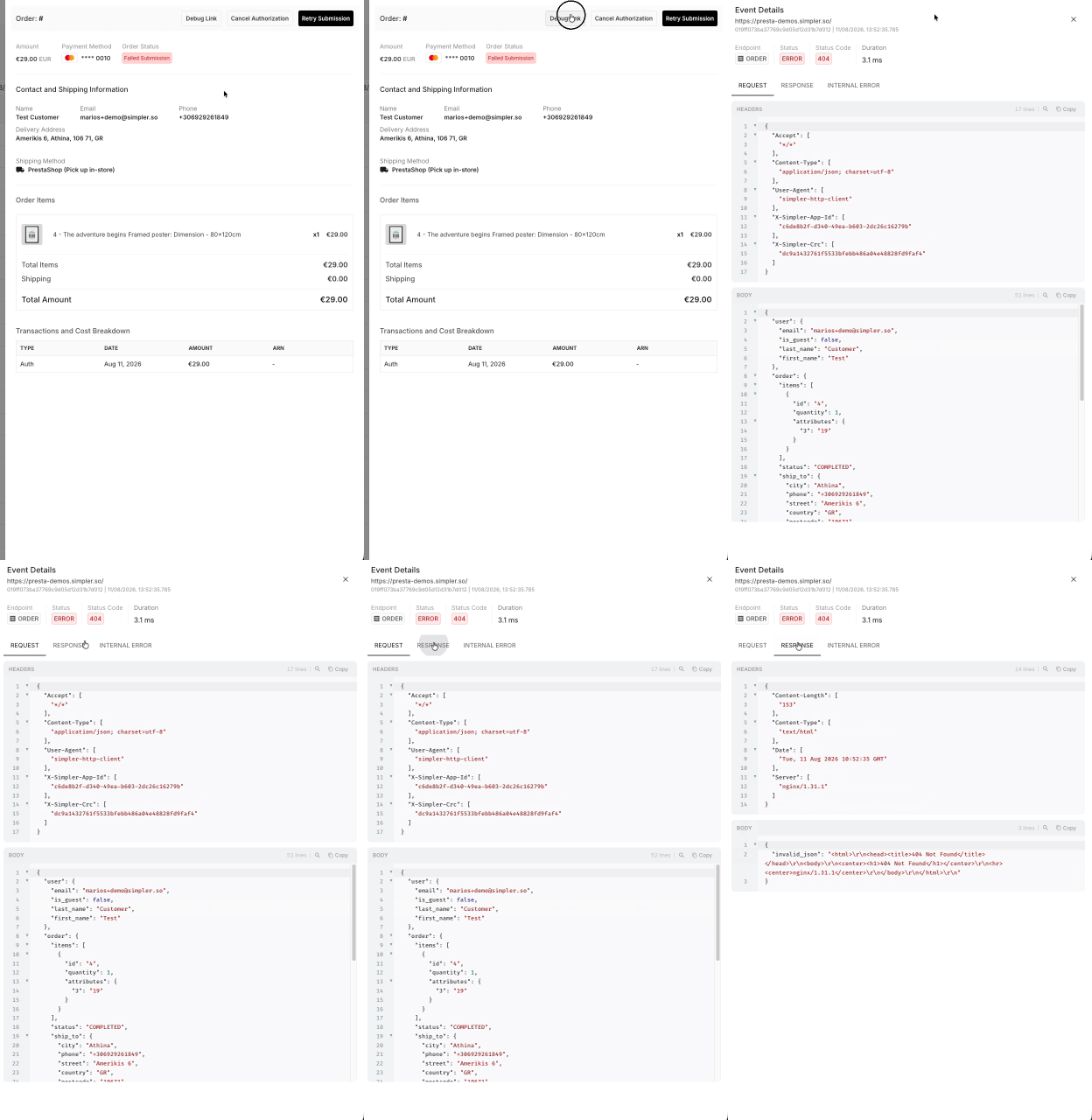
Retry Submission
If you've resolved whatever caused the failure (for example, restocked an out-of-stock item), click Retry Submission on the order detail page. This resubmits the order to your platform and, on success, charges the shopper and assigns the order an ID — no further steps needed.
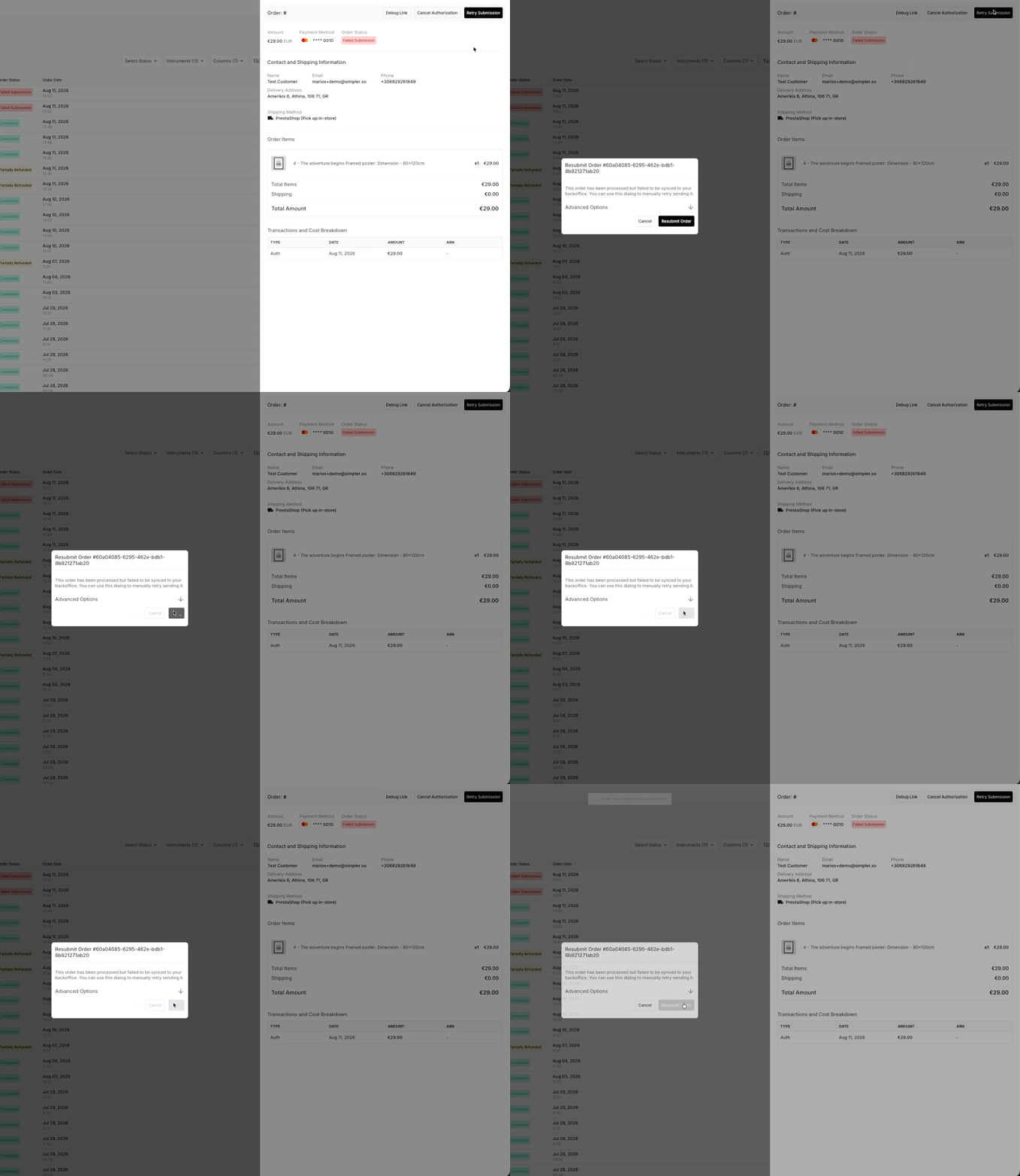
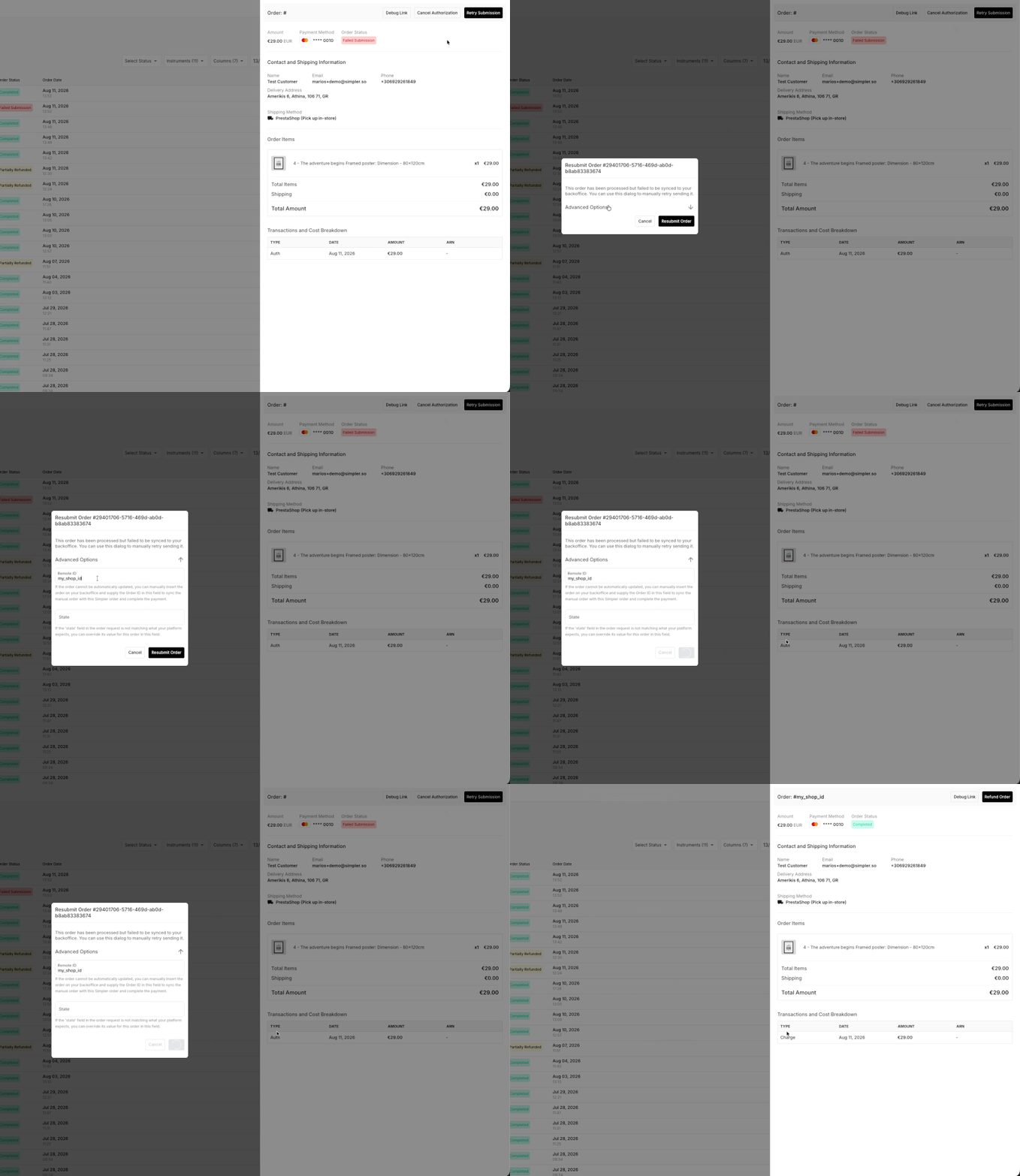
Already created the order manually?
If you've already entered the order directly into your backoffice rather than waiting for it to resubmit automatically, open Advanced Options in the Retry Submission dialog and enter that order's ID in the Remote ID field. This links your manually-created order to the Simpler order and completes the charge, instead of creating a duplicate.
Cancel Authorization
If you can't fulfill the order at all, click Cancel Authorization on the order detail page. This releases the hold on the shopper's card — they will not be charged. This action can't be undone, so only use it once you're sure the order won't be retried.